 Posts and Plugins
What plugins are and how to use them
Last reviewed
The short version
- A plugin adds a feature to WordPress, such as a contact form or spam control.
- You install a plugin, then you must activate it.
- You can switch a plugin off, or delete it when you no longer need it.
- Choose plugins carefully. The next page shows how.
What a plugin is
WordPress itself, called core, handles the main jobs. It publishes content and manages users.[1]
A plugin is an extra piece of software that you add to core.[1] It extends what WordPress can do.[2] Plugins are PHP scripts.[1]
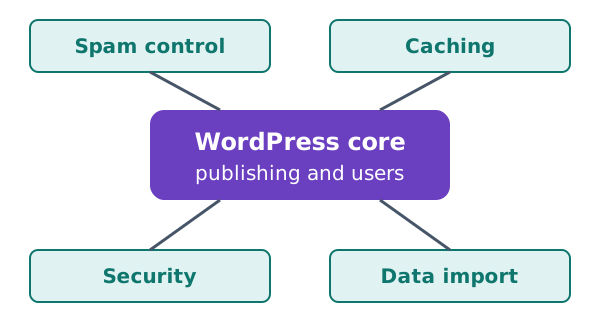
Because of plugins, core does not need to include everything for everyone. Popular kinds include spam control, caching, security and data import.[1]
There are thousands of plugins in the official directory.[1] Volunteers often make them, and they are usually free.[1]
Plugins in the directory are tested and considered safe. Still, they vary in quality. Many are works in progress.[1] So it pays to choose with care.
Three ways to install a plugin
There are three ways to install a plugin.[1]
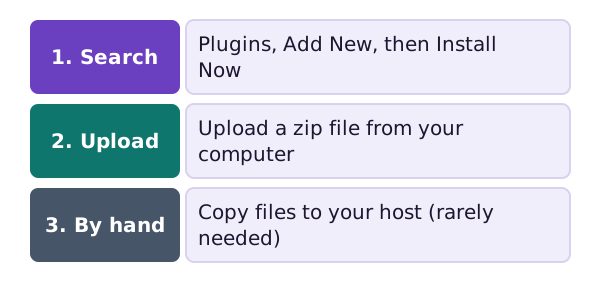
1. Search the directory
This is the easiest way. Go to Plugins, then Add New.
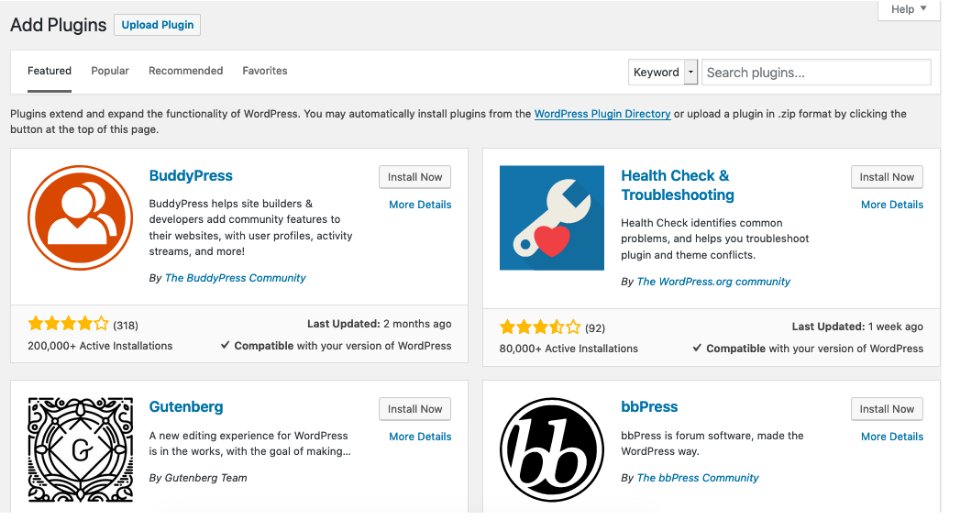
Use the search box at the top right. You can search by keyword, author or tag.[1] A keyword search looks at plugin names and descriptions.[2]
Click Install Now.[1] When it finishes, click Activate.[1]
2. Upload a zip file
If you downloaded a plugin as a zip file, you can upload it from your computer.[1] The Add New screen has an Upload Plugin button for this.[1]
3. By hand
In rare cases, you may need to put the files on your server yourself.[1] You copy the plugin folder into the wp-content/plugins folder.[1] Most people never need this.
Switch it on
Installing a plugin does not make it work. You must activate it first.[3]
You manage your plugins on the Plugins screen.[1]
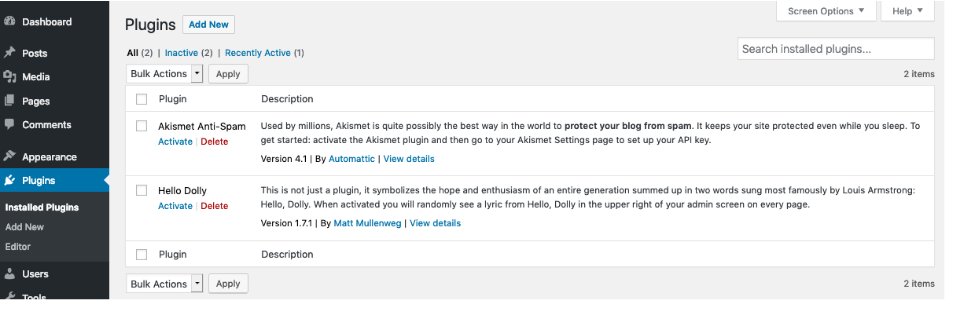
Plugins that are active show in bold.[1] The links at the top, such as Active and Inactive, filter the list.[3]
Switch it off and delete it
Deactivate turns a plugin off.[3] You can only delete a plugin that is inactive.[3]
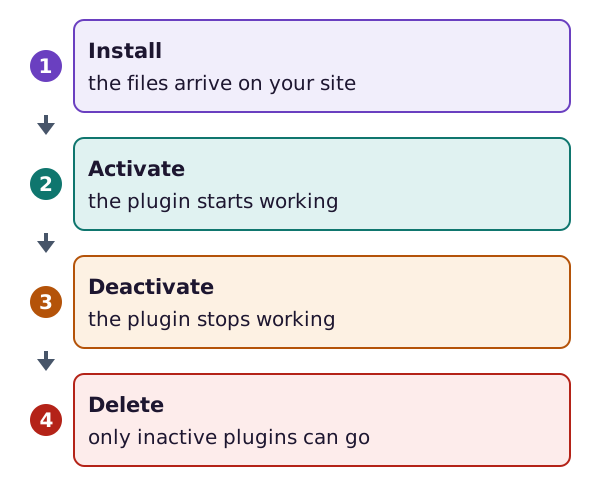
So the order is: deactivate first, then delete.[1]
Do not edit the code of an active plugin. WordPress does not recommend it.[3]
A habit worth building
Keep only the plugins you use. Each one is more software to look after. The page on keeping WordPress updated explains why that matters.
Sources
- Manage Plugins, WordPress.org Documentation (accessed 2026-10-18)
- Plugins Add New screen, WordPress.org Documentation (accessed 2026-10-18)
- Plugins screen, WordPress.org Documentation (accessed 2026-10-18)