 Posts and Plugins
Installing WordPress on your host
Last reviewed
The short version
- Your host must run a few tools that WordPress needs.
- Installing means getting the files onto your host and running a short setup.
- Many hosts can do it for you. If yours cannot, you can do it by hand.
- At the end you log in at
/wp-adminon your own domain.
What your host needs
WordPress is built to be easy to install.[1] The install often takes less than five minutes.[1]
First, check that your host can run it. WordPress asks for three things:[2]
- PHP version 8.3 or greater. PHP is a programming language, and WordPress is built on it.[3]
- A database: MariaDB version 10.11 or greater, or MySQL version 8.0 or greater. A database is where WordPress keeps your posts.[4]
- HTTPS support. This is the secure version of the web address you see in a browser.
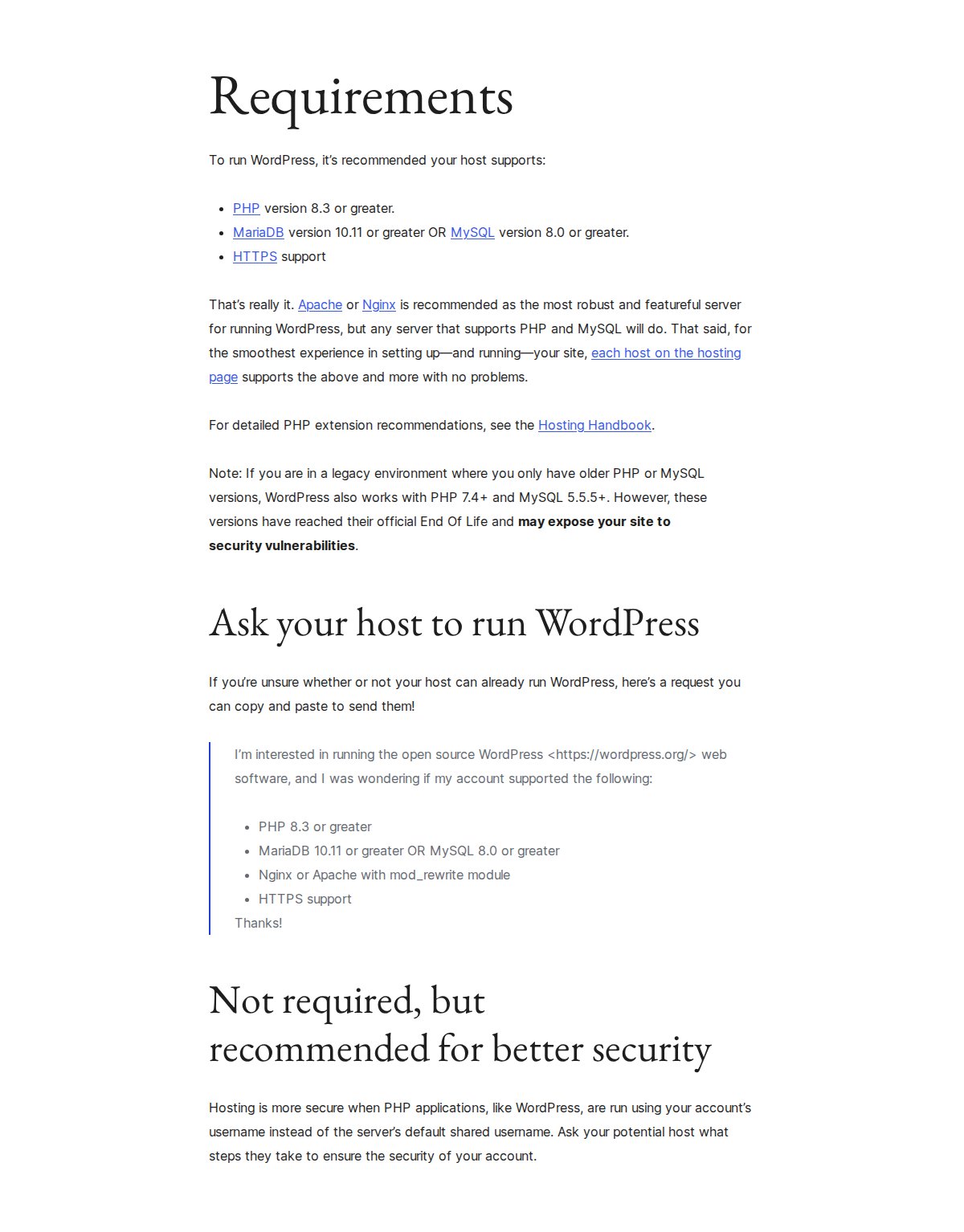
Any server that supports PHP and MySQL will do.[2] If you are not sure about your host, you can ask it. WordPress.org even gives you words to copy and send.[2]
Easy way: let your host do it
Many web hosts offer tools that install WordPress for you.[1] Look in your host's control panel for a WordPress option. If it is there, use it. You can then skip to the setup screen further down.
By hand: the five steps
Here is the by-hand route, in order.[1]
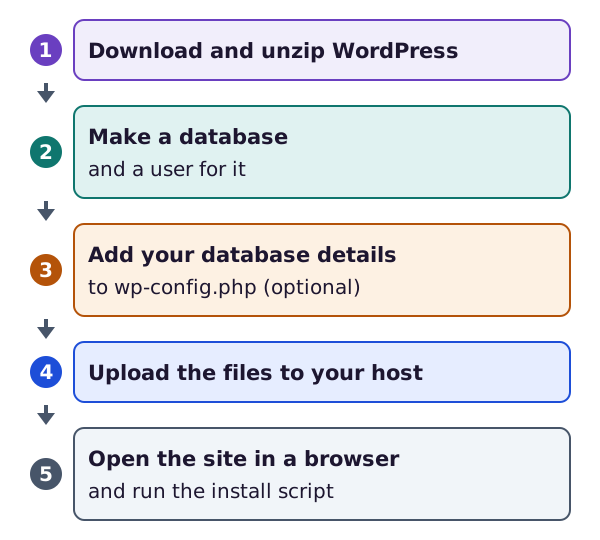
- Download and unzip the WordPress package from the WordPress.org download page.
- Make a database on your host. Also make a database user with full rights to it.[1] Your host may have done this for you already. It may also have a tool that does it.[1]
- Add your database details to a file called
wp-config.php. This step is optional. If you skip it, the install program makes the file for you.[1] - Upload the files to your web server.[1]
- Run the install script. Open your site in a web browser.[1] For a site at
example.com, the address isexample.com/wp-admin/install.php.[1]
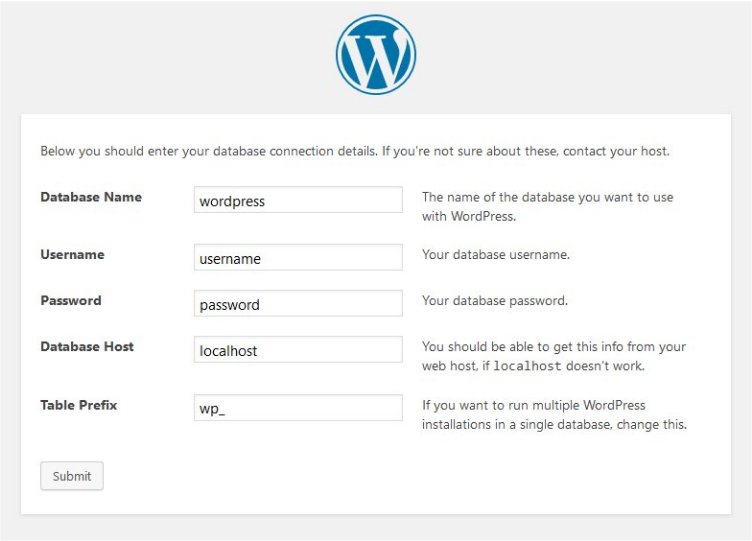
If WordPress cannot find its config file, it asks for your database details and writes the file for you.[1] Here is that screen:
The last setup screen
The final screen asks you for a few things. These are your site title, a user name, a password (twice) and your email address.[1]
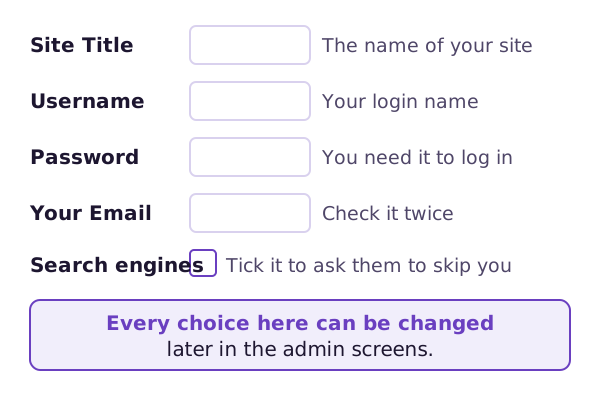
There is also a box about search engines. Leave it unticked if you want your site to be visible to everyone, search engines included.[1]
Do not worry about getting anything wrong. You can change all of this later in the admin screens.[1]
Log in for the first time
To log in, put wp-admin after your domain name.[5] Then use the user name and password you just made.
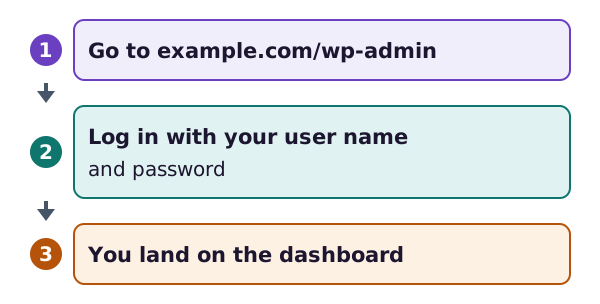
You will see this login screen:
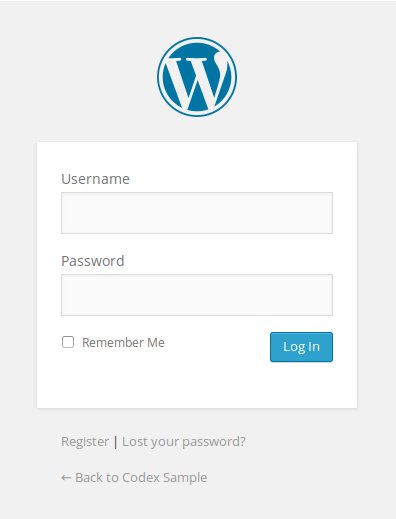
After you log in, you land on the main admin screen. It is called the Dashboard.[5] The next page shows you around it.
Sources
- How to install WordPress, WordPress Advanced Administration Handbook (accessed 2026-10-18)
- Requirements, WordPress.org (accessed 2026-10-18)
- About WordPress, WordPress.org (accessed 2026-10-18)
- What is Post Type?, WordPress.org Documentation (accessed 2026-10-18)
- First steps with WordPress, WordPress.org Documentation (accessed 2026-10-18)