 Posts and Plugins
A tour of the admin area
Last reviewed
The short version
- The admin area is the private side of your site. Only people who log in can see it.
- Every admin screen has the same four parts.
- The menu on the left is your map. Each item opens a screen for one job.
- The first screen you see is the dashboard.
The four parts of every screen
Every admin screen is split into four parts: the toolbar, the main menu, the work area and the footer.[1]
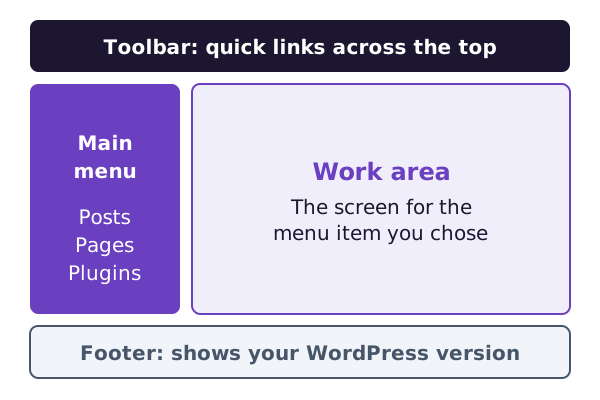
The toolbar runs along the top. It has quick links to common jobs.[1]
The main menu is on the left. It lists everything you can do.[1]
The work area is the big space in the middle. It shows the screen for the menu item you picked.
The footer shows which version of WordPress you run.[1]
Screens can differ a little between versions of WordPress. Yours may not match every picture exactly.
The main menu, one item at a time
Here is what each item is for.
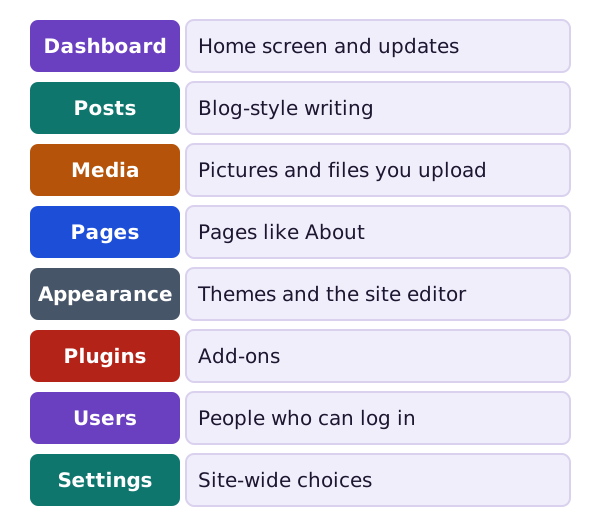
- Posts hold your blog-style writing. Posts are the main content of a blog.[1]
- Media holds the images, videos, recordings and files you upload.[1]
- Pages hold timeless content, such as an About or Contact page.[1]
- Appearance is where you pick a theme. A theme is the overall design of a site.[1] With a block theme, you also find the Editor here.[1]
- Plugins add new features that WordPress does not have on its own.[1]
- Users lists the people who can log in. A blog probably has at least two users to begin with.[1]
- Settings hold the choices that decide how your whole site behaves.[1]
Later pages cover each of these in turn.
The dashboard
The dashboard is the first screen after you log in. It shows recent activity on your site and in the WordPress community. It also shows update news.[1]
It is built from small boxes. These are called widgets.
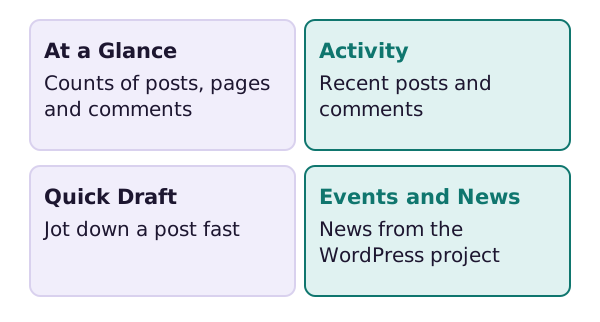
- Welcome shows links for common first jobs on a new site.[1]
- At a Glance gives a summary of your content. It also names your theme and your WordPress version.[1]
- Activity lists upcoming and recent posts and the latest comments.[2]
- Quick Draft lets you start a new post and save it as a draft.[1]
Make the dashboard fit you
You can hide boxes you do not use. Click Screen Options near the top and tick or untick each box.[2] You can also open or close a box by clicking its title bar.[2]
Other screens have Screen Options too. Each screen can show a different set of choices.[1]
Where next
Time to write something. The next section starts with posts and pages.
Sources
- Administration Screens, WordPress.org Documentation (accessed 2026-10-18)
- Dashboard screen, WordPress.org Documentation (accessed 2026-10-18)